Hey! It’s Théo. If you’re creating your first Google Ads account, Google will start you in the simplified mode. It’s easy for beginners, but very limited if you want to manage campaigns effectively.
To activate Google Ads Expert Mode, click “Switch to Expert Mode” at the bottom of the setup screen. If your account already exists, go to “Tools & Settings” and make the switch from there.
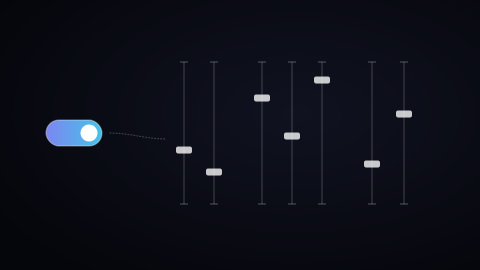
Expert Mode on Google Ads gives you full control: keyword match types, manual bidding, conversion tracking, Performance Max campaigns, remarketing, and more. Whether you’re running Search campaigns, PPC ads, or working with a Google Ads expert, Expert Mode is essential to unlock the platform’s full power and scale your paid media strategy.
Smart Mode or Expert Mode: what changes
Google defines each mode in one sentence. In Smart Mode, "campaign set up is simplified by Google AI which configures your Smart campaigns for you". Expert Mode "is recommended for more advanced advertisers" and gives you complete control over your campaign setup (Google help).
Smart Mode works like an autopilot: you give the destination, Google holds the controls. According to Google's own comparison:
- In Smart Mode, you only create Smart campaigns: you give a few keyword themes, and your search terms are maintained and updated over time.
- In Expert Mode, you choose your own keywords, set bid prices and structure your account yourself.
- Expert Mode opens the other campaign types: Search, Display, Video, App, Shopping and Performance Max.
Can you go back to Smart Mode?
You can switch to Expert Mode at any time: an account opened for Smart campaigns starts in Smart Mode, and Google states that it can change to Expert Mode whenever you want (Google Ads help).
In May 2024, Google's help said that once an account is switched to Expert Mode, it cannot revert to Smart Mode, and that your Smart campaigns can still be edited from Expert Mode (archived page). That page has since been rewritten and no longer mentions it.